Letting AI Edit Images#
Is AI good at editing images?#
Editing images, such as removing specific objects or changing their colors, has become an area where AI excels.
Let’s take a look at how well it performs.
The image on the left is the original, and the one on the right has been modified by AI.
- Sample 1
Prompt : “Please remove the apple from the picture.”
The AI smoothly erased the apple as follows.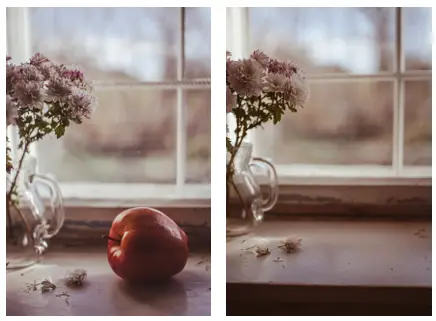
- Sample 2
Prompt : “Please replace the apple with a banana in the photo.”
The AI has seamlessly changed the apple to a banana like this.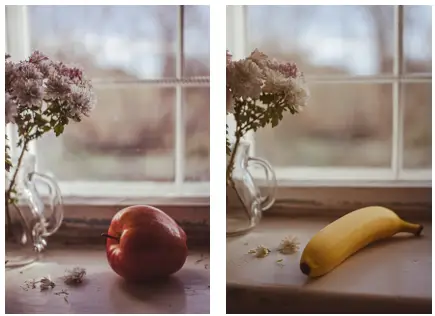
The image has been edited naturally.
It turned out quite well, right?
If you look closely, you can see some parts of the image have been altered, but if we pay more attention to the prompt, it could be cleaned up nicely.
Now, let’s find out how to do this.
How is it implemented?#
The image editing was implemented in Python using the gpt-image-1 model provided by OpenAI.
While OpenAI’s AI models are paid, they generally offer good performance.
This is an image editing source code written in Python, based on the document referenced above.
Editing a Single Image#
import base64
from openai import OpenAI

client = OpenAI(api_key='YOUR-API-KEY')

cmd = 'Change the color of the apple to blue in the photo.'

img_input = 'input.jpg'
result = client.images.edit(
    model="gpt-image-1",
    image=[open(img_input, "rb")],
    prompt=cmd,
)

image_base64 = result.data[0].b64_json
image_bytes = base64.b64decode(image_base64)

img_output = 'output.png'
with open(img_output, "wb") as f:
    f.write(image_bytes)
The source code is simple.
You can achieve interesting results by editing or creating images with various prompts.
Try experimenting with different prompts.
Editing by Combining Multiple Images#
Here is a prompt I created for editing two images,
making it look like the dog in the right image is holding an apple in its mouth.
- Sample 3
Prompt : “Please make the dog in input2 hold the apple from input in its mouth.”
(input: file name of the image on the left, input2: file name of the image on the right)
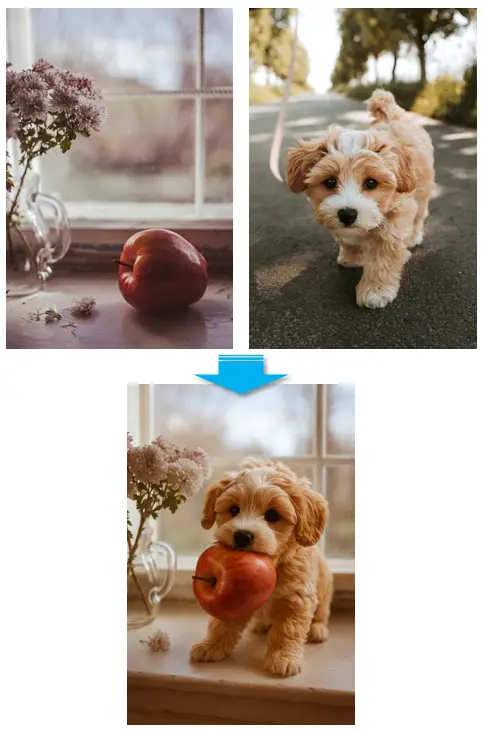
Here is the source code that uses two images.
cmd = 'Please make the dog in input2 hold the apple from input in its mouth.'

img_input = 'input.jpg'
img_input2 = 'input2.jpg'
result = client.images.edit(
    model="gpt-image-1",
    image=[open(img_input, "rb"), open(img_input2, "rb")],
    prompt=cmd,
)

image_base64 = result.data[0].b64_json
image_bytes = base64.b64decode(image_base64)

img_output = 'output2.png'
with open(img_output, "wb") as f:
    f.write(image_bytes)
I input two images in the form of a list for the image parameter.
Since it’s a list, more images, such as three or four, can be added.
image=[open(img_input, "rb"), open(img_input2, "rb")],